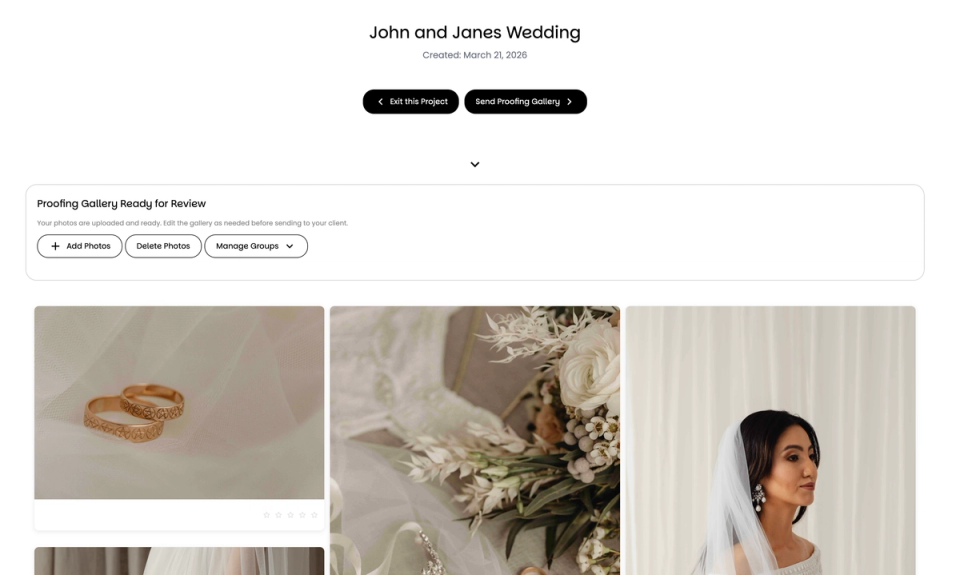
send proofing gallery
If you've ever received an email from a client with a list of file names like _IMG4021, _IMG4035, _IMG4087 and then spent the next thirty minutes hunting for each one in your Lightroom catalog, you already know the problem.
We built Gallerina because my co-founder, a photographer, hit this wall constantly. After every shoot, the editing couldn't start until the client's selections were manually tracked down in Lightroom. It didn't matter how fast the shoot went or how quickly the proofs were delivered. The bottleneck was always the same: getting those selections back into the catalog.
This guide covers every method we've seen photographers use, where each one breaks down, and how we solved it with a Lightroom Classic plugin.
After a shoot, most workflows look something like this:
You cull your images, apply a basic batch edit, and export low-resolution proofs. You upload those proofs somewhere (Google Drive, Dropbox, a gallery platform, or WhatsApp). Your client reviews the photos and tells you which ones they want fully edited.
The friction is in how they tell you.
Some clients send a numbered list in an email. Some send screenshots with circles drawn on them. Some reply with "I like the third one from the top, and the one where we're standing by the tree." Others send a spreadsheet with file names copied from the gallery. And some just go quiet for three weeks.
No matter how the selections arrive, you end up doing the same thing: opening Lightroom Classic, hunting for each selected photo across hundreds or thousands of visually similar images, and manually flagging them so you can start editing.
The most common manual approach uses Lightroom Classic's Library Filter to search for file names individually.
Open your catalog, go to the Library module, and enable the Library Filter bar at the top (press the backslash key if it's hidden). Set the filter to "Text," choose "Filename" with "Contains" as the match type, then type or paste the first file name from your client's list. When Lightroom finds the match, flag it or apply a color label. Clear the search, paste the next file name, repeat.
If your client selected 30 photos, you're doing this 30 times. For a wedding with 100+ selections, you're doing it for the better part of an hour.
The problems stack up quickly. Typos in file names break the search entirely. Partial matches pull up wrong images because searching "IMG_1" also returns "IMG_10", "IMG_100", and "IMG_1234."
This works for a quick portrait session with five or ten picks. It falls apart for anything bigger.
Some gallery platforms like Pixieset and ShootProof offer a "Copy Favorites List" feature. When a client marks favorites in the gallery, the photographer can copy a comma-separated list of file names and paste it into Lightroom's text filter to find them all at once.
This is faster than one-by-one searching, but it has quirks. We've broken down how this limitation impacts your speed in our review of the best client proofing tools for Lightroom Classic.
The paste method still relies on Lightroom's "Contains" filter, which produces partial matches. If your naming convention uses short number sequences, you'll get false positives mixed in with the real selections. The copied list sometimes includes file extensions or extra formatting that needs cleanup before Lightroom will accept it.
Some photographers work around this with Excel formulas to reformat the client's email into a Lightroom-compatible search string. It works, technically. But spending twenty minutes wrangling data in a spreadsheet to avoid thirty minutes of searching in Lightroom isn't much of a win.
A more structured version of Method 2 involves exporting a CSV file from your gallery platform and using it as a reference to flag images in Lightroom.
The workflow goes like this: download the CSV of client favorites from the gallery, open it in Excel or Google Sheets, clean up the file names into a usable column, then use Lightroom's text filter or a third-party script to match and flag them.
This is reliable, but it means jumping between three or four different applications for every single project. Your gallery platform, a spreadsheet app, and Lightroom at minimum. For photographers managing multiple weddings or portrait sessions per week, those extra steps per project add up to hours of lost time each month.
The methods above all share the same core problem. They treat the client's selections and the photographer's Lightroom catalog as two separate systems, and leave the photographer to bridge the gap manually.
A plugin-based approach removes this gap completely. The web gallery and the local Lightroom catalog share a direct connection, so selections flow back automatically without any manual matching.
Here's how this works with Gallerina and the GallerinaSync plugin.
Create a project in Gallerina, upload your proofing photos, and send the gallery link to your client. The gallery is PIN-protected, so only the people you share the PIN with can access it.
send proofing gallery
Your client opens the gallery link on any device. No app to download, no Adobe account to create, nothing to install. They see the photos in a grid view and tap to select. A running count shows how many they've picked, and if you've set a selection limit, they can't go over it. When they're done, they tap submit.

client selection view
One important UX detail: selections happen directly on the grid. The client doesn't have to open each photo individually to mark it, which makes a real difference when they're choosing from hundreds of images. Family members can also pass the link around and contribute picks without needing separate accounts.
Back in Lightroom, open the GallerinaSync plugin through File, then Plugin Extras, then under GallerinaSync click sync now. The plugin detects your project automatically and shows you a breakdown: how many photos the client selected, how many matched in your local catalog, and what will be applied.
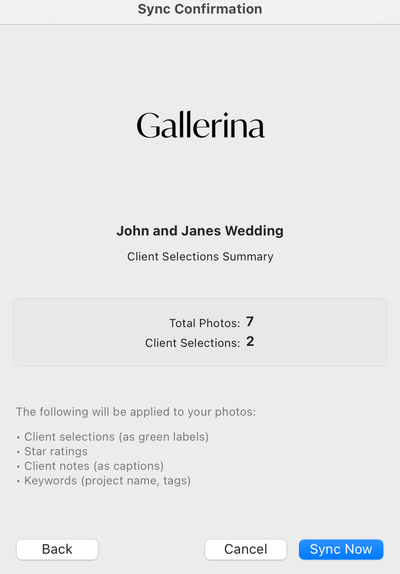
sync with Gallerina
Click "Sync Now." The plugin applies green color labels to the client's selected photos in your catalog. You can immediately filter by label and start editing.
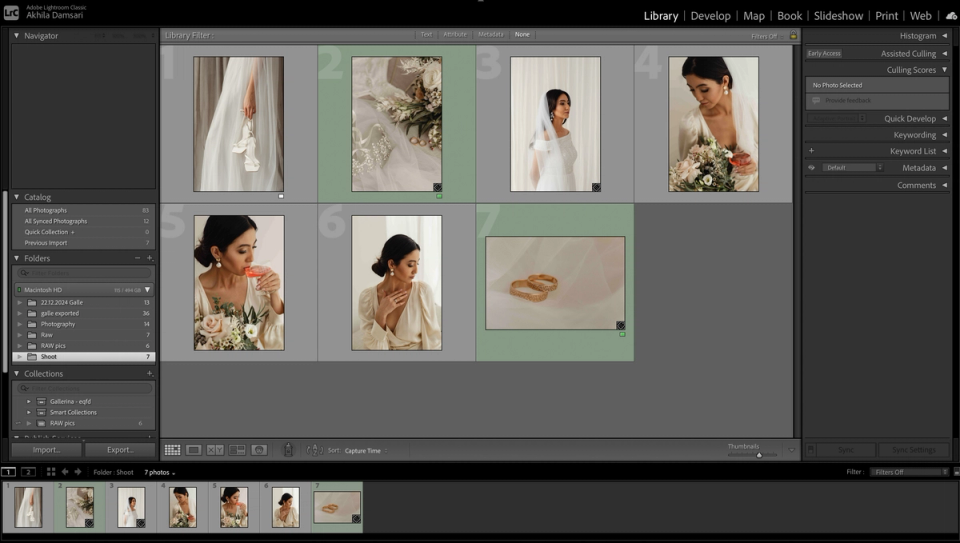
Selections are synced with Lightroom
The time between the client clicking submit and the selections appearing in your Lightroom catalog is about five seconds.
The plugin based method is always recommended for photographers to get the client selections easily and accurately while giving the client a premium experience.
Most of this conversation focuses on the photographer's side: saving editing time, reducing admin work. But the client's experience during selection matters just as much.
When a client receives a Google Drive folder with 800 photos and instructions to "send back the file names of the ones you want edited," you're handing them homework. Most clients aren't comfortable navigating file systems or copying alphanumeric file names. The result is usually a delayed response (weeks of waiting), an inaccurate list (wrong file names, missing selections), or frustration that reflects poorly on the overall experience of working with you.
A dedicated proofing gallery, where the client simply taps photos to select them on their phone, removes all of that friction. They don't need to know what a file name is. They tap the photos they like, see a running count, and hit submit. That's the entire interaction.
If you're currently matching client selections manually and want to try the automated approach, you can create a free account at gallerina.app and run projects with the GallerinaSync plugin. The plugin installation is a one-time setup in Lightroom Classic's Plugin Manager, and syncing works with any catalog.
To see the full workflow before signing up, we have a 3-minute walkthrough video showing everything from project creation to the final sync.
Watch how top photographers use Gallerina to streamline their workflow, and deliver an unforgettable experience.
Create project for free